Block Ads on Every Device in Your Home
By Alex R. · 13 May 2026
Most ad blockers work at the browser level. They're fine, but they only protect that one browser, on that one device. This works on your TV, toaster and washing machine.
Most ad blockers work at the browser level. They're fine, but they only protect that one browser, on that one device. This works on your TV, toaster and washing machine.
Here's how to set it up.
---
Meet is Pi-hole?
Pi-hole is a DNS sinkhole. When a device on your network tries to load ads.doubleclick.net, it asks your DNS server where that is. Normally your DNS server answers. With Pi-hole, it just... doesn't. The request goes nowhere, the ad never loads.
It runs on a Raspberry Pi (that's where the name comes from), but you can run it on any linux machine like a spare laptop, a virtual machine, a cheap VPS on your local network, or even a Docker container.
---
What You'll Need
- A Raspberry Pi (3, 4, or Zero 2 W all work fine) or any machine running Ubuntu/Debian
- A microSD card (8GB minimum)
- A way to give it a static IP on your network (you'll do this through your router)
- About 20 minutes
---
Step 1 : Get Your Pi Running
If you're starting from scratch, flash Raspberry Pi OS to your SD card using Raspberry Pi Imager. Before you write the image, hit the settings gear and:
- Set a hostname (e.g. pihole)
- Enable SSH or install it if the ssh server is not installed.
- Set your Wi-Fi credentials (or just plug in ethernet — preferred)
Boot the Pi, find its IP on your router's admin page and make sure is set as static IP and SSH in:
ssh pi@192.168.1.XXX---
Step 2 — Install Pi-hole
One command:
curl -sSL https://install.pi-hole.net | bashThe installer walks you through everything interactively. When it asks which upstream DNS provider to use, pick anything eg: Cloudflare (1.1.1.1) or Quad9 are solid choices. The defaults for everything else are fine to start with.
At the end, it'll show you:
- The web admin URL (e.g. http://192.168.1.XXX/admin) / if you get a 403 error try with https://192.168.1.XXX/admin
- Your admin password
Save that password... very important. If you can;t rememeber the password , type in the terminal :
sudo -s
pihole setpassword
---
Step 3 : Give It a Static IP
Pi-hole is useless if its IP changes. Lock it in place.
Log into your router admin (usually 192.168.1.1 or 192.168.0.1). Find the DHCP server then find your Pi's MAC address and assign it a fixed IP permanently.
---
Step 4 : Point Your Router at Pi-hole
This is the step that makes it work for every device at once.
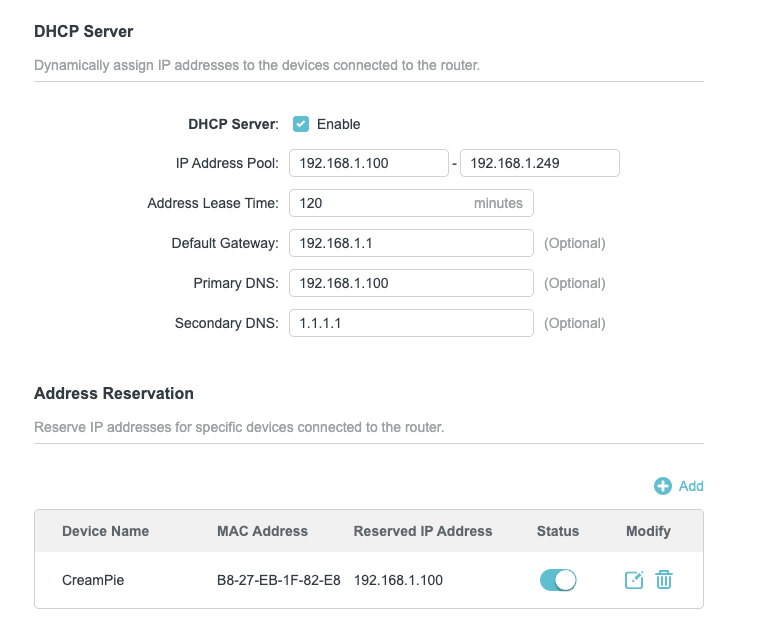
In your router settings, find the DNS server configuration ...that's usually under LAN settings or DHCP settings. Set the Primary DNS to your Pi-hole's IP address. Set the Secondary DNS to something like 1.1.1.1 as a fallback (so your network doesn't die if the Pi reboots).
Save and restart your router. Every device that reconnects will now route DNS through Pi-hole.
---
Step 5 — Check It's Working

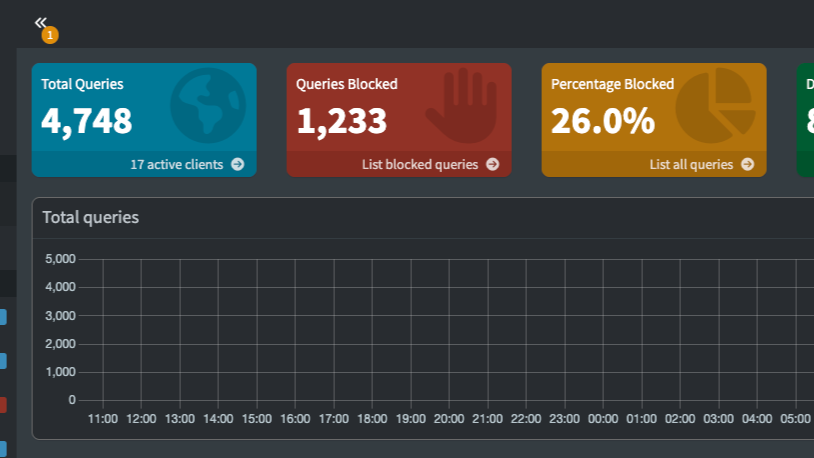
Open the Pi-hole admin dashboard at http://[your-pi-ip]/admin or https://..... Within a few minutes of normal browsing you'll see queries appearing in real time and a percentage being blocked.
A typical home network blocks somewhere between 10–30% of DNS queries. That's not 10% of ads .. that's 10% of all network requests, most of which you'd never have known were happening.
---
Tweaking the Blocklists
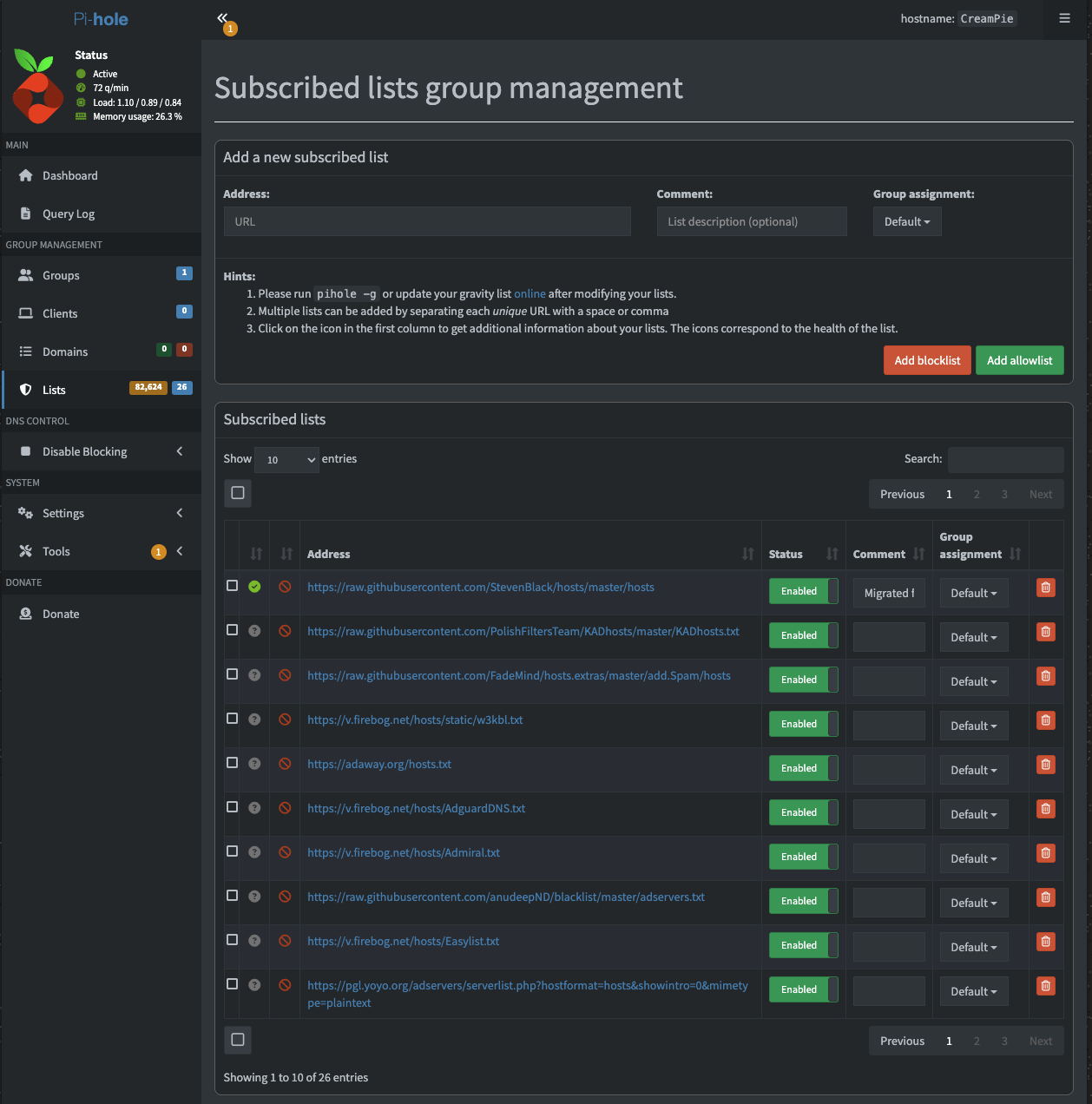
Pi-hole ships with one default blocklist. You can add more under Adlists in the dashboard. A community-maintained list of good ones lives at firebog.net where the green-ticked ones are low false-positive and a good starting point.
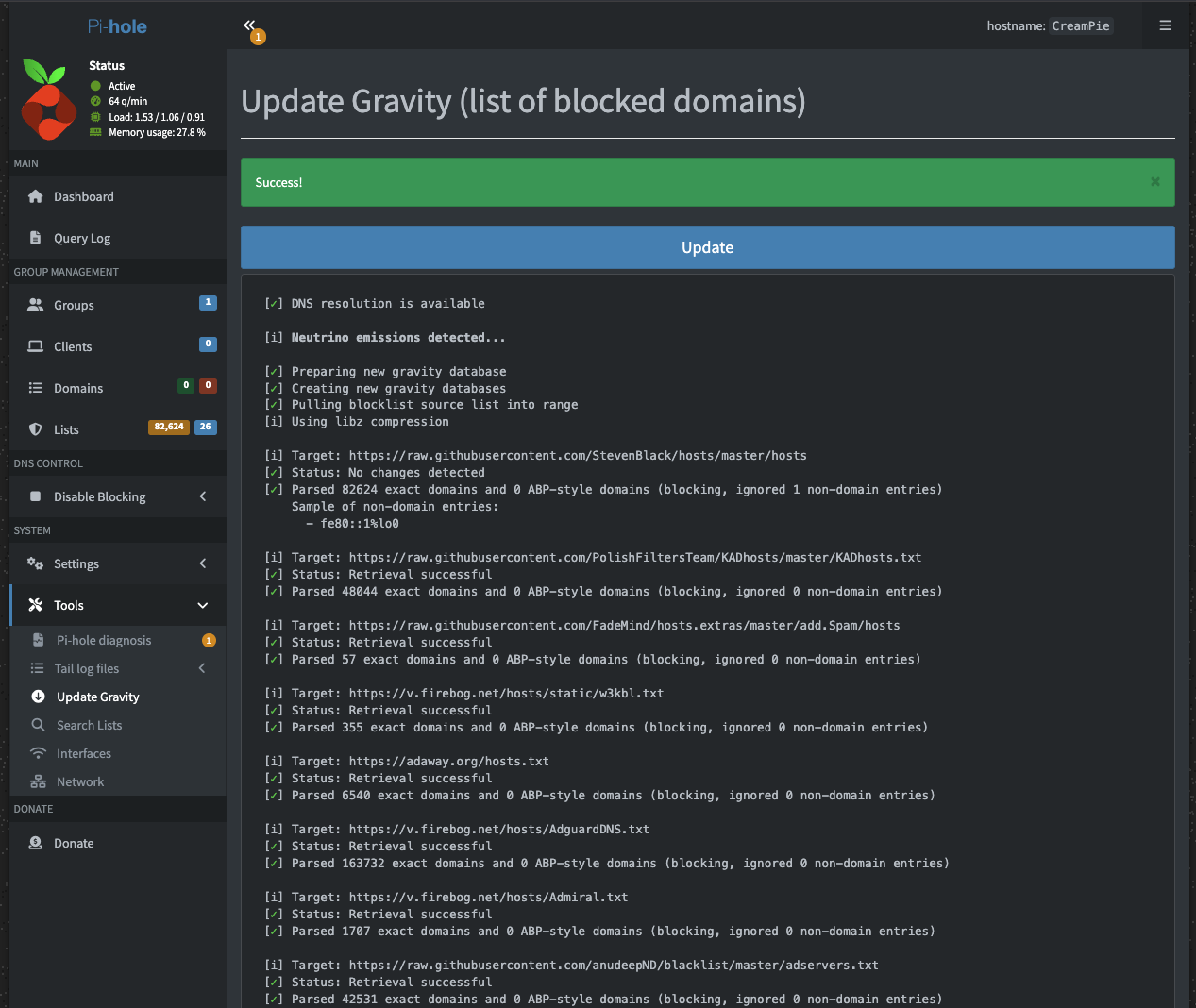
After adding lists, go to Tools → Update Gravity to pull them in.
---
When Things Break
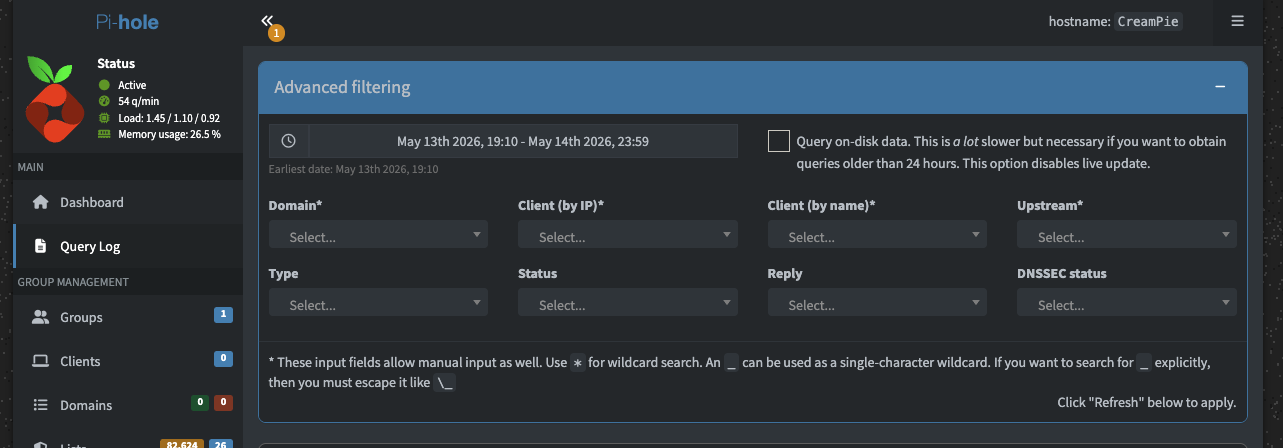
Occasionally a legitimate site will stop working because something it depends on is on a blocklist. Pi-hole makes this easy to diagnose — search the query log for the site name and look for blocked requests in red. You can whitelist individual domains with one click.
---
Why Bother?
Beyond the obvious (fewer ads), Pi-hole blocks a lot of telemetry that devices send without asking like your smart TVs, IoT devices, even Windows phoning home. It's not a perfect solution for everything but it meaningfully reduces the background noise of tracking that happens on a modern home network.
It also costs almost nothing. A Raspberry Pi Zero 2 W is around £20. Once it's running, you forget it's there.